Blue Screen Error in Windows: Causes, Fixes, and Complete Troubleshooting Guide
Introduction
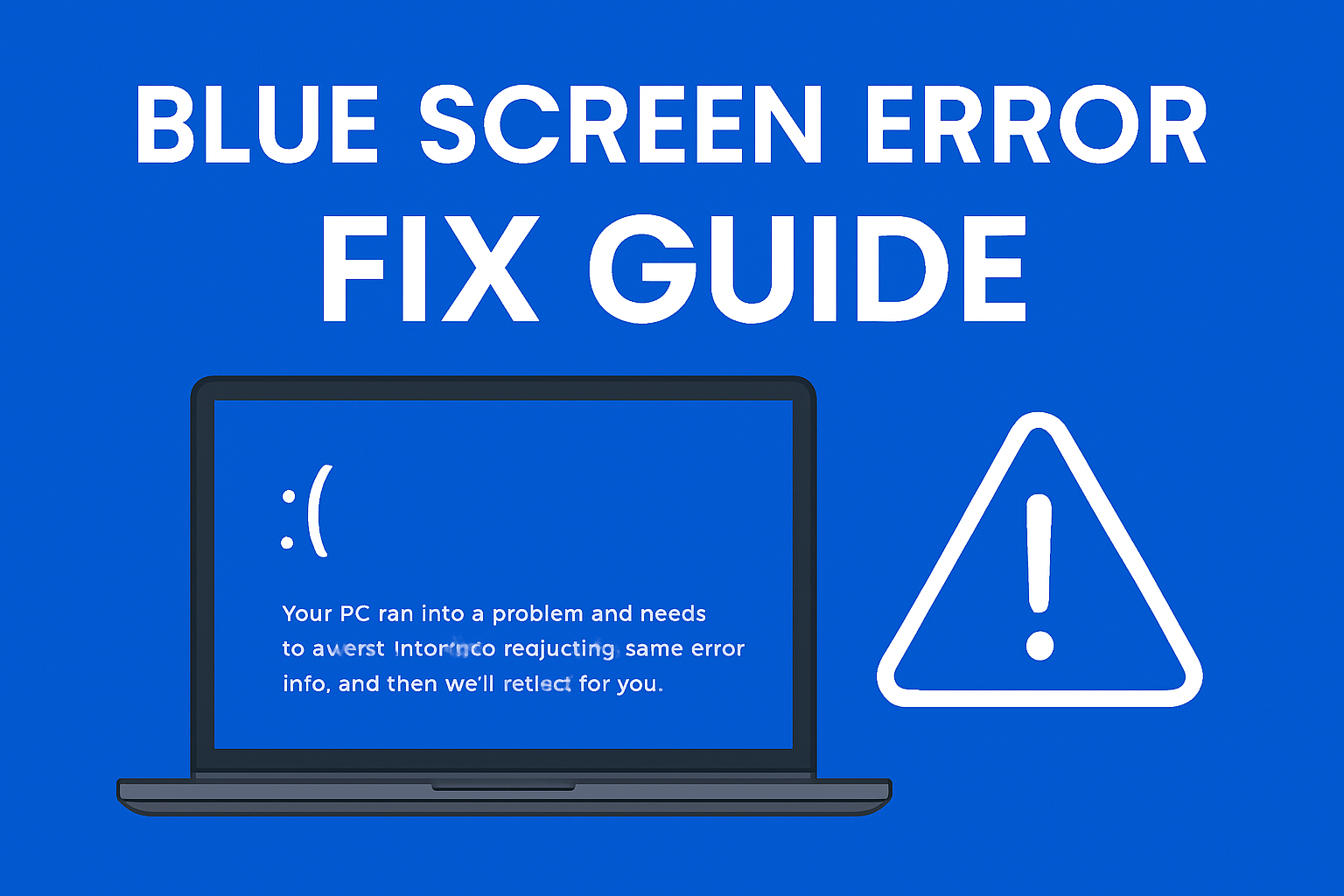
If you are a Windows user, you might have faced the Blue Screen Error, also known as the Blue Screen of Death (BSOD). It usually appears suddenly with a blue background and an error message like “Your PC ran into a problem and needs to restart.”
This error looks scary, but it is Windows’ way of protecting your system when it encounters a critical issue. In this article, we will cover everything you need to know about Blue Screen Error in Windows 10 and Windows 11—including causes, common error codes, fixes, and prevention methods.
What is Blue Screen Error (BSOD)?
The Blue Screen Error is a STOP error that forces Windows to restart when the operating system detects a serious problem that could damage your hardware or software. Instead of crashing silently, Windows shows a blue screen with an error code to help identify the problem.
👉 Example message:
“Your PC ran into a problem and needs to restart. We’re just collecting some error info, and then we’ll restart for you.”
Common Causes of Blue Screen Error
There are many reasons why BSOD occurs, including:
- Hardware Issues – Faulty RAM, hard drive failure, overheating, or GPU problems.
- Corrupt Drivers – Outdated or incompatible drivers can crash the system.
- Software Conflicts – Recently installed applications or antivirus programs may cause errors.
- Windows Updates – Buggy updates can lead to blue screen problems.
- Overclocking – Increasing CPU/GPU speed beyond safe limits can cause instability.
- Malware Infection – Viruses or rootkits may damage system files.
- Corrupt System Files – Missing or damaged Windows files can trigger BSOD.
Common Blue Screen Error Codes
When a BSOD occurs, Windows displays an error code. Some common ones are:
- CRITICAL_PROCESS_DIED – A critical system process failed.
- MEMORY_MANAGEMENT – RAM issues or memory corruption.
- IRQL_NOT_LESS_OR_EQUAL – Driver conflicts or hardware issues.
- SYSTEM_THREAD_EXCEPTION_NOT_HANDLED – Faulty driver or incompatible software.
- PAGE_FAULT_IN_NONPAGED_AREA – Bad RAM or corrupt system files.
- INACCESSIBLE_BOOT_DEVICE – Disk or bootloader issues.
- KERNEL_SECURITY_CHECK_FAILURE – Corrupt drivers or hardware failures.
- VIDEO_TDR_FAILURE – Graphics card (GPU) crash.
How to Fix Blue Screen Error in Windows (Step-by-Step)
Here are proven methods to fix BSOD in Windows 10 and Windows 11:
1. Restart in Safe Mode
Safe Mode loads only essential drivers. If BSOD doesn’t occur in Safe Mode, the issue is likely caused by third-party drivers or software.
- Restart your PC → Press F8 or Shift + F8 (Windows 7/8) or use Advanced Startup Options in Windows 10/11.
- Choose Safe Mode with Networking.
2. Check for Windows Updates
Sometimes Microsoft releases patches for BSOD errors.
- Go to Settings → Update & Security → Windows Update → Check for updates.
3. Update or Roll Back Drivers
Outdated or corrupted drivers cause most BSODs.
- Open Device Manager → Right-click driver → Update or Roll Back.
4. Check for Malware
Run a Windows Defender scan or use third-party antivirus. Malware can corrupt system files.
5. Run System File Checker (SFC)
Corrupt files may cause BSOD. Run this command:
sfc /scannow
6. Run DISM Tool
If SFC fails, use Deployment Imaging Servicing and Management (DISM):
DISM /Online /Cleanup-Image /RestoreHealth
7. Check Hardware (RAM & Hard Drive)
- Run Windows Memory Diagnostic Tool → Search “Windows Memory Diagnostic” and restart PC.
- For hard drive errors, run:
chkdsk /f /r
8. Uninstall Problematic Software
Recently installed apps or antivirus may trigger BSOD. Remove them and restart.
9. Disable Overclocking
Reset CPU/GPU to factory settings in BIOS/UEFI.
10. System Restore or Reset PC
If nothing works:
- Use System Restore to roll back Windows to a working state.
- Or Reset this PC (Settings → Update & Security → Recovery).
How to Prevent Blue Screen Errors
- Keep Windows and drivers updated.
- Avoid downloading drivers from untrusted sites.
- Regularly scan your PC for malware.
- Do not overclock hardware unless necessary.
- Maintain enough free disk space.
- Perform regular backups to avoid data loss.
Frequently Asked Questions (FAQ)
Q1: Does a blue screen mean my computer is dying?
Not always. It usually means there is a driver, hardware, or software issue.
Q2: Can I fix blue screen errors without reinstalling Windows?
Yes. Most BSODs can be fixed using troubleshooting methods like updating drivers, scanning for malware, or running SFC/DISM commands.
Q3: Will resetting Windows remove blue screen errors?
Yes, in most cases, a clean reset fixes BSOD if caused by software corruption.
Q4: Why does BSOD happen after Windows Update?
Sometimes, new updates introduce bugs. You can uninstall the update or wait for Microsoft to release a fix.
Q5: Can faulty RAM cause blue screen errors?
Yes. Bad memory is one of the most common causes of BSOD.
Conclusion
The Blue Screen Error (BSOD) in Windows may look frightening, but it’s actually a protective mechanism. Most blue screen issues are caused by driver problems, faulty hardware, or corrupt system files.
By following the troubleshooting steps like updating drivers, scanning for malware, running SFC/DISM, and checking hardware, you can resolve most BSOD issues without reinstalling Windows.
👉 Keep your system updated, scan regularly for malware, and avoid hardware overclocking to prevent future blue screen crashes.
Read Also:
- How to Fix Windows Update Error in Windows 10/11 – Step by Step Guide
- Epson Printer Resetter Tool Download – Fix Service Required & Waste Ink Pad Error L1210 to 5290