How to Reset Windows 10 Laptop Without Password (2025-2026 Guide)
Introduction
Forgetting your Windows 10 laptop password can feel like a nightmare — you can’t log in, access files, or continue your work. But don’t panic. Microsoft provides several safe ways to reset a Windows 10 laptop without needing the current password.
In this updated 2025-2026 guide, we’ll cover three proven methods:
- Resetting from the sign-in screen
- Performing a clean installation with a bootable USB
- Resetting via your Microsoft account
We’ll also share data backup tips, frequently asked questions, and pro recommendations to make the process smooth and secure.
Why Reset a Windows 10 Laptop Without Password?
There are multiple situations where you may need to reset your PC:
- You forgot the login password.
- You bought a second-hand laptop without credentials.
- The system is running too slow or infected with malware.
- You want to start fresh with a clean Windows installation.
Method 1: How To Reset Windows 10 from the Sign-in Screen (Quickest Way)
This is the easiest method if you’re locked out of your laptop.
Steps:
- Boot your laptop to the sign-in screen.
- At the bottom-right corner, click the Power icon.
- Hold the Shift key and select Restart.
- Your laptop will boot into Windows Recovery Environment (WinRE).
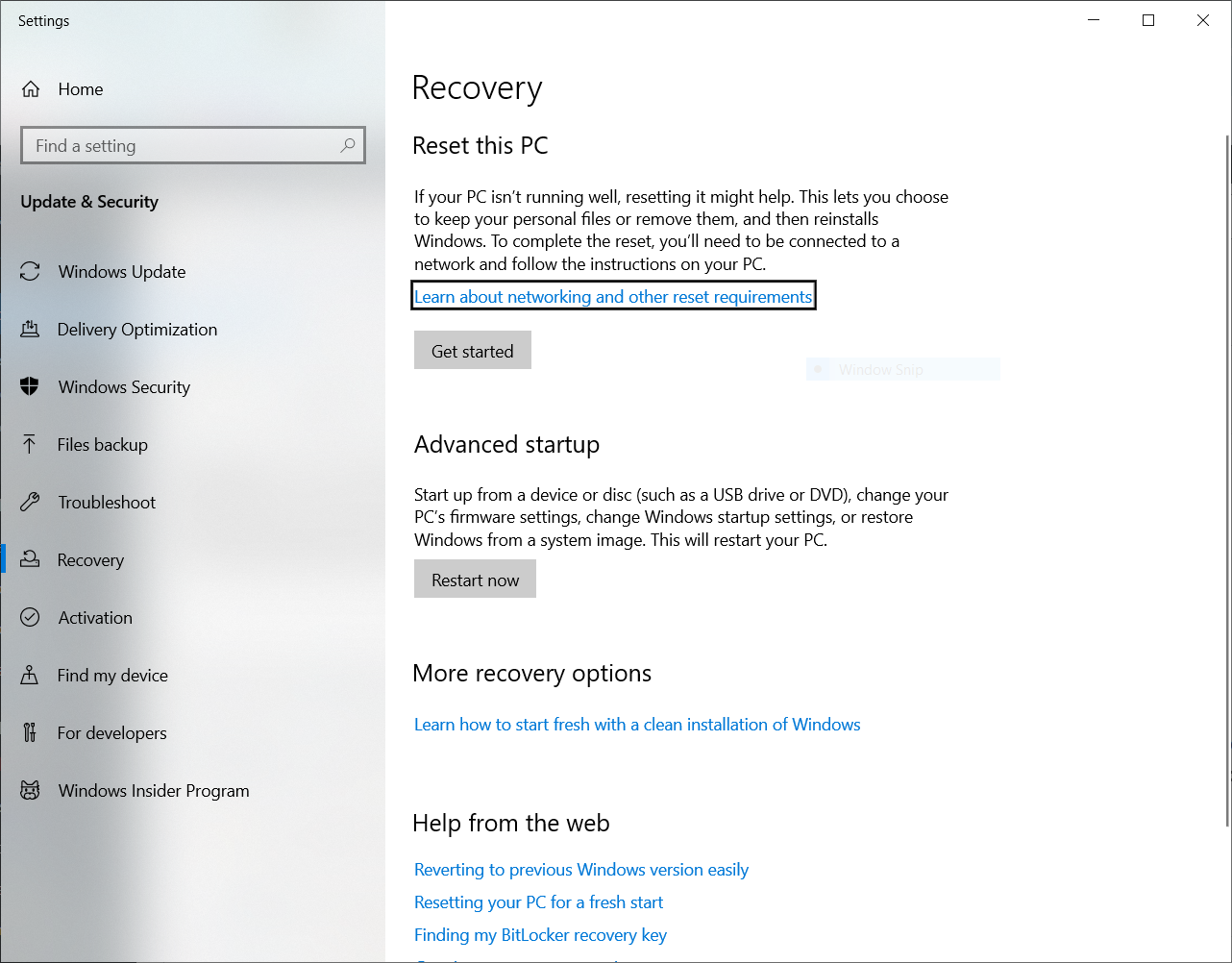
- Choose: Troubleshoot → Reset this PC.
- Select one of the following options:
- Keep my files → Keeps personal files, removes apps & settings.
- Remove everything → Wipes all data, full factory reset.
- Follow the on-screen instructions to complete the reset.
👉 This method works best if you want a quick reset without entering a password.
Method 2: Reset Using a Bootable USB (Clean Install)
If the first method doesn’t work, the most reliable option is to reinstall Windows 10 using a bootable USB drive.
Step 1: Create a Bootable USB
- On another computer, download the Media Creation Tool from Microsoft’s official website.
- Insert an 8GB+ USB drive.
- Select Create installation media for another PC.
- Choose your language, edition, and architecture (64-bit recommended).
- Complete the process to make your USB bootable.
- create bootable usb download
Step 2: Boot Your Laptop from USB
- Insert the bootable USB into your locked laptop.
- Restart and press the appropriate boot menu key (F12, Esc, F9, F2 depending on your brand).
- Select the USB drive as the boot option.
Step 3: Install Windows 10
- Click Install Now.
- When prompted for a product key, click I don’t have a product key (Windows will auto-activate later if it was previously activated).
- On the partition screen: delete or format the old drive (C:).
- Choose Next to install a fresh copy of Windows 10.
👉 This method removes all passwords and provides a brand-new system.
Method 3: Reset via Microsoft Account (Password Recovery)
If your laptop is linked with a Microsoft account, you don’t even need to reset Windows. You can simply reset your account password online.
Steps:
- Go to the official Microsoft Password Reset Page on another device.
- Enter your registered email or phone number.
- Verify your identity via code (email or SMS).
- Set a new password.
- Use this new password to log into your laptop.
👉 This method is the safest if your system is Microsoft-account linked.
Backup Your Files Before Reset
Resetting or reinstalling Windows may delete your personal files. If you have important data, back it up before resetting.
Options for Backup:
- Use a Live Linux USB: Boot into Linux and copy your files to an external drive.
- Remove the hard drive/SSD: Connect it to another computer with a USB-SATA adapter and back up your data.
FAQs
Q1. Will resetting remove Windows activation?
👉 No. If your laptop was previously activated, Windows 10 will automatically reactivate after reset.
Q2. Can I reset without losing files?
👉 Yes, if you choose Keep my files. But apps & settings will be removed.
Q3. Are third-party password cracking tools safe?
👉 No. They can expose your PC to malware. Always use official Microsoft reset methods.
Q4. How long does the reset process take?
👉 It usually takes 30 minutes to 2 hours, depending on your laptop speed and selected reset method.
Conclusion
Forgetting your Windows 10 laptop password is frustrating, but as you’ve seen, there are safe ways to reset your system without needing the old password.
- Use the sign-in screen reset for a quick fix.
- Go for a bootable USB reinstall if you need a complete clean slate.
- If you’re a Microsoft account user, reset your password online in minutes.
Always back up your files before proceeding, and once your laptop is reset, set a strong, memorable password or enable Windows Hello/2FA for better security.
With these methods, you’ll never feel locked out again. 🚀
related tags: #reset Windows 10 laptop without password, #reset Windows 10 without login, #reset Windows 10 sign-in screen, #bootable USB reset
learn more post:
Blue Screen Error in Windows 10-11 – Causes, Solutions, and Fix Guide
How to Fix Windows Update Error in Windows 10/11 – Step by Step Guide
Epson Printer Resetter Tool Download – Fix Service Required & Waste Ink Pad Error L1210 to 5290
Frija Tool Download v2.0.23364.3: A Complete Guide to Using It for Best Samsung Firmware
sp flash tool download for windows 10 | Everything You Need to Know
Fantastic site A lot of helpful info here Im sending it to some buddies ans additionally sharing in delicious And naturally thanks on your sweat