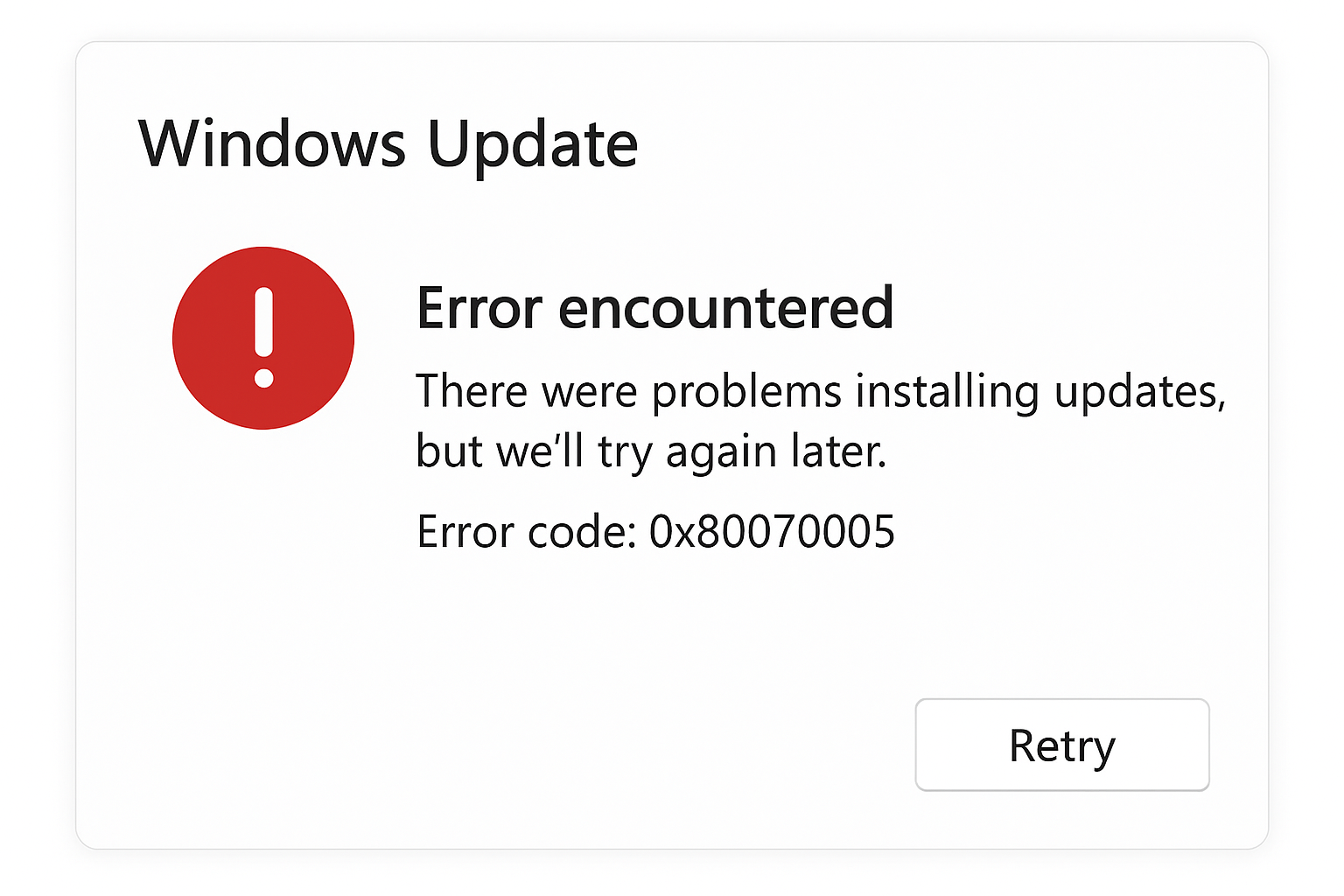
How to Fix Windows Update Error in Windows 10/11
Windows Update is important for security patches, driver updates, and new features. But sometimes, users face Windows Update issues like:
- Update stuck at 0% or 99%
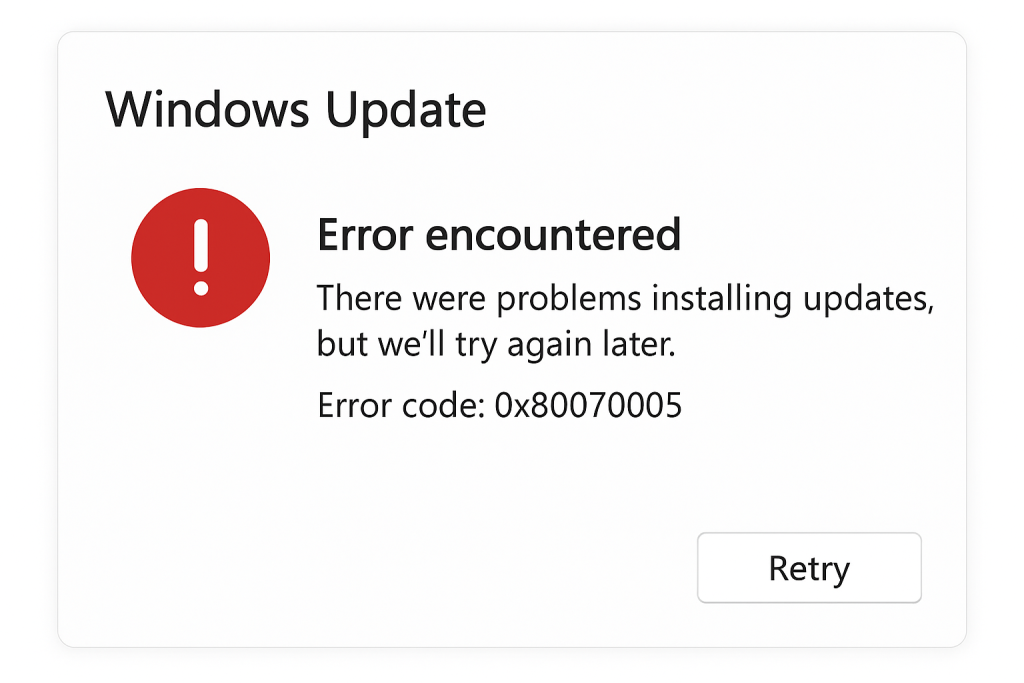
- Error codes (0x80070005, 0x800f081f, 0x8024402f, etc.)
- “Windows Update failed to install”
- Update keeps failing repeatedly
In this guide, we will explain the causes and solutions to fix update installation errors in Windows 10 and Windows 11.
🔹 Common Causes of Windows Update Problems
- Corrupted Windows Update files
- Low disk space during update installation
- Unstable internet connection
- Antivirus or Firewall blocking Windows updates
- Damaged system files
- Windows Update service not responding
🔹 Step by Step Solutions to Fix Windows Update Error
1. Run Windows Update Troubleshooter
- Press Windows + I → Go to Settings → Update & Security → Troubleshoot → Additional troubleshooters.
- Select Windows Update → Click Run the troubleshooter.
- It will automatically detect and fix most update problems.
2. Check Internet Connection
- Use a stable Wi-Fi or Ethernet connection.
- Avoid VPN while downloading updates.
- Restart your router if update download is stuck.
3. Free Up Disk Space for Updates
- Press Windows + E → Right click on C: Drive → Select Properties → Disk Cleanup.
- Delete temporary files, junk data, and previous Windows installation files.
otherwise use Run command
cleanmgr.exe
4. Restart Windows Update Services
- Press Windows + R, type:
services.msc - Find these services and Restart them:
- Windows Update
- Background Intelligent Transfer Service (BITS)
- Cryptographic Services
- Windows Installer (if needed)
5. Clear Windows Update Cache (Fix Stuck Updates)
- Open Command Prompt (Admin).
- Type the following commands one by one:
net stop wuauserv
net stop bits
ren C:\Windows\SoftwareDistribution SoftwareDistribution.old
net start wuauserv
net start bits
👉 This will remove corrupted update files and fix update keeps failing issues.
6. Repair Corrupted System Files (SFC & DISM)
- Open Command Prompt (Admin).
- Run these commands:
sfc /scannow
DISM /Online /Cleanup-Image /RestoreHealth
👉 This fixes system corruption errors that cause update installation failure.
7. Manually Download and Install Updates
- Go to Microsoft Update Catalog (https://www.catalog.update.microsoft.com/)
- Search update code (e.g., KB5003173)
- Download & install updates manually.
🔹 FAQs on Windows Update Issues
Q1: Why does Windows Update keep failing on my PC?
👉 It usually happens due to corrupted files, poor internet, or stopped update services.
Q2: How do I fix Windows Update error code 0x80070005?
👉 Reset update cache, run troubleshooter, and check permissions.
Q3: Can antivirus block Windows updates?
👉 Yes, third-party antivirus/firewall may block updates. Try disabling it temporarily.
Q4: What if my Windows update is stuck at 0%?
👉 Clear update cache, restart services, or manually install the update.
🔹 Conclusion
Windows Update errors are common but solvable. Start with the Windows Update troubleshooter, then check services, clear cache, and repair system files. If nothing works, use the manual update method.
👉 By following these solutions, you can fix Windows update failed errors, prevent update keeps failing issues, and keep your Windows 10/11 updated smoothly and securely.
Read More Article : Epson Printer Resetter Tool Download – Fix Service Required & Waste Ink Pad Error L1210 to 5290