
Adobe Photoshop 7.0 JPEG Noise Filter Plugin – The Ultimate Guide for Noise-Free Photos
Introduction
JPEG Noise Filter Plugin for Adobe Photoshop 7.0
Adobe Photoshop 7.0 is a legendary photo editing software that’s still loved by photographers, designers, and creative professionals worldwide. With its simple interface, lightweight performance, and powerful features, it remains a go-to choice for many.
However, when saving images in JPEG format, unwanted noise or grainy texture often appears, lowering the quality of your pictures. The best solution? The JPEG Noise Filter Plugin.
JPEG Noise Filter Plugin for Adobe Photoshop 7.0
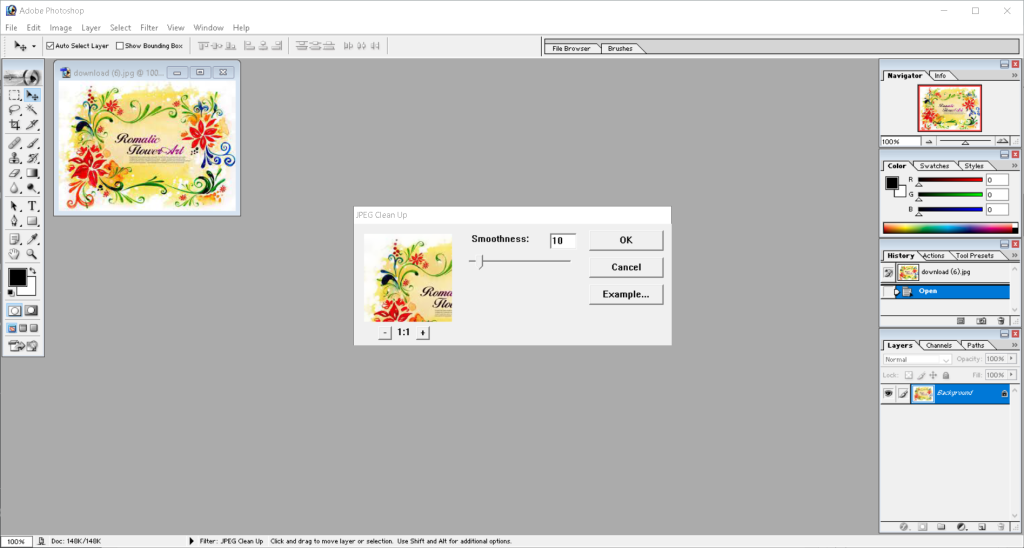
What is JPEG Noise?
JPEG noise refers to unwanted grain, speckles, or pixel distortion that appears in images after compression. This problem is more common in:
- Low-light photography
- High ISO settings
- Over-compressed images
The result is a loss of sharpness, clarity, and a professional finish.
Why Use a JPEG Noise Filter Plugin in Photoshop 7.0?
While Photoshop 7.0 has some built-in noise reduction tools, they are limited in power. A JPEG Noise Filter Plugin gives you:
- Better noise removal without destroying important details
- Smooth skin tones in portraits
- Improved low-light images
- Optimized quality for printing
How to Download & Install JPEG Noise Filter Plugin
https://bypassapp.in/wp-content/uploads/2025/08/jpeg-clenup.8bf
1. Download the Plugin – Search online for “Photoshop 7.0 JPEG Noise Filter Plugin” and download from a trusted source (e.g., Neat Image, Noise Ninja, Topaz DeNoise).
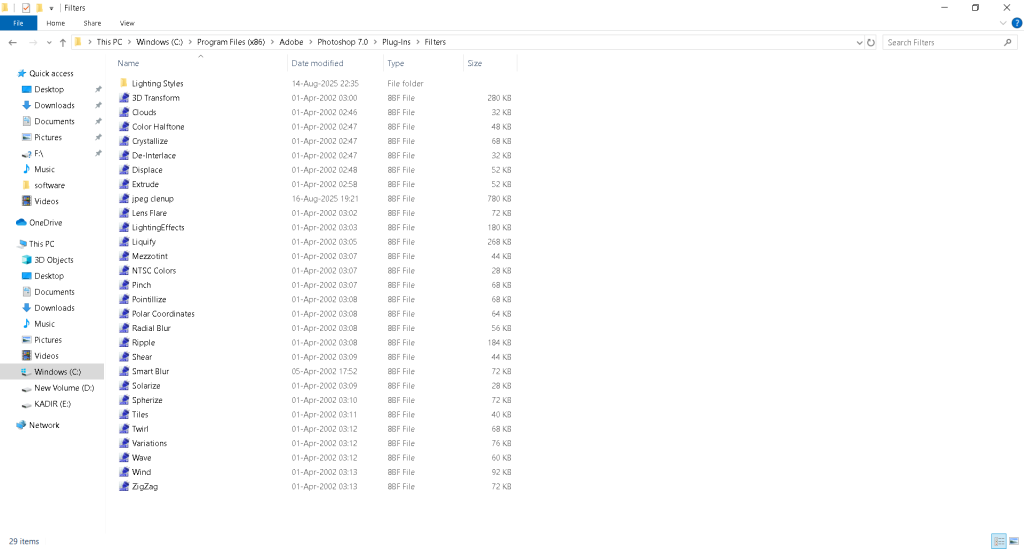
2. Copy to the Plugin Folder – Move the downloaded `.8bf` file into Photoshop’s plugin directory:
`C:\Program Files (x86)\Adobe\Photoshop 7.0\Plug-Ins\Filters`
3. Restart Photoshop – Close and reopen Photoshop so the plugin appears in the Filters menu And the click noise select JPEG cleanup.
4. Apply the Filter –
- Open your image.
- Go to `Filter → [Your Noise Reduction Plugin]`.
- Adjust settings and preview changes before applying.
Best JPEG Noise Filter Plugins for Photoshop 7.0
- Bypassapp.in – High quality manual filters apply
- Neat Image – Highly popular for smooth, natural results
- Noise Ninja – Favored by professional photographers
- Topaz DeNoise – AI-powered noise removal with detail preservation
- Noiseware – Fast processing with great smoothing effects
Pro Tips for Noise Removal
- Always work on a duplicate layer to protect the original image
- After noise removal, sharpen the image to restore fine details
- Avoid excessive smoothing to prevent a plastic look
- Use slightly higher noise reduction for low-light images
Conclusion
If you’re using Photoshop 7.0, a JPEG Noise Filter Plugin is an essential tool to make your photos look professional. It fixes compression damage, smooths skin tones, and enhances overall image quality.
Whether you’re a beginner or an experienced editor, this plugin will make your workflow faster and your results more impressive.
FAQs
What is a JPEG Noise Filter Plugin in Photoshop 7.0?
A JPEG Noise Filter Plugin is an additional tool for Photoshop 7.0 that helps remove grain, speckles, and compression artifacts from JPEG images while preserving important details.
Is Photoshop 7.0 still good for noise removal?
Yes, but the built-in tools are limited. Using plugins like JPEG Cleanup bypassapp, Neat Image, Noise Ninja, or Topaz DeNoise can give much better results.
How do I install a JPEG Noise Filter Plugin in Photoshop 7.0?
Download the .8bf plugin file, place it in the Plug-Ins/Filters folder of Photoshop 7.0, restart the software, and access it from the Filter menu.
Which is the best noise reduction plugin for Photoshop 7.0?
Neat Image and Noise Ninja are the most popular for professional-quality noise reduction.
Can I use modern noise reduction plugins with Photoshop 7.0?
Some modern plugins may not be compatible due to the old version, but many classic versions of plugins are still available online.
Photoshop 7.0 noise removal, JPEG noise filter plugin, Photoshop plugins download, Photoshop 7.0 photo editing tips, remove JPEG noise, Neat Image Photoshop plugin, Noise Ninja plugin.